Finding Your Way Around
Learn where to find common areas, menus, and actions in Fouffy Dog Routing.
Fouffy Dog Routing is organized around the work you do most often: customers, routes, drivers, dispatch locations, imports, and account settings.
The options you see may be different from another user's options. Your account role, organization role, and driver assignment control what appears in the app.
Main navigation
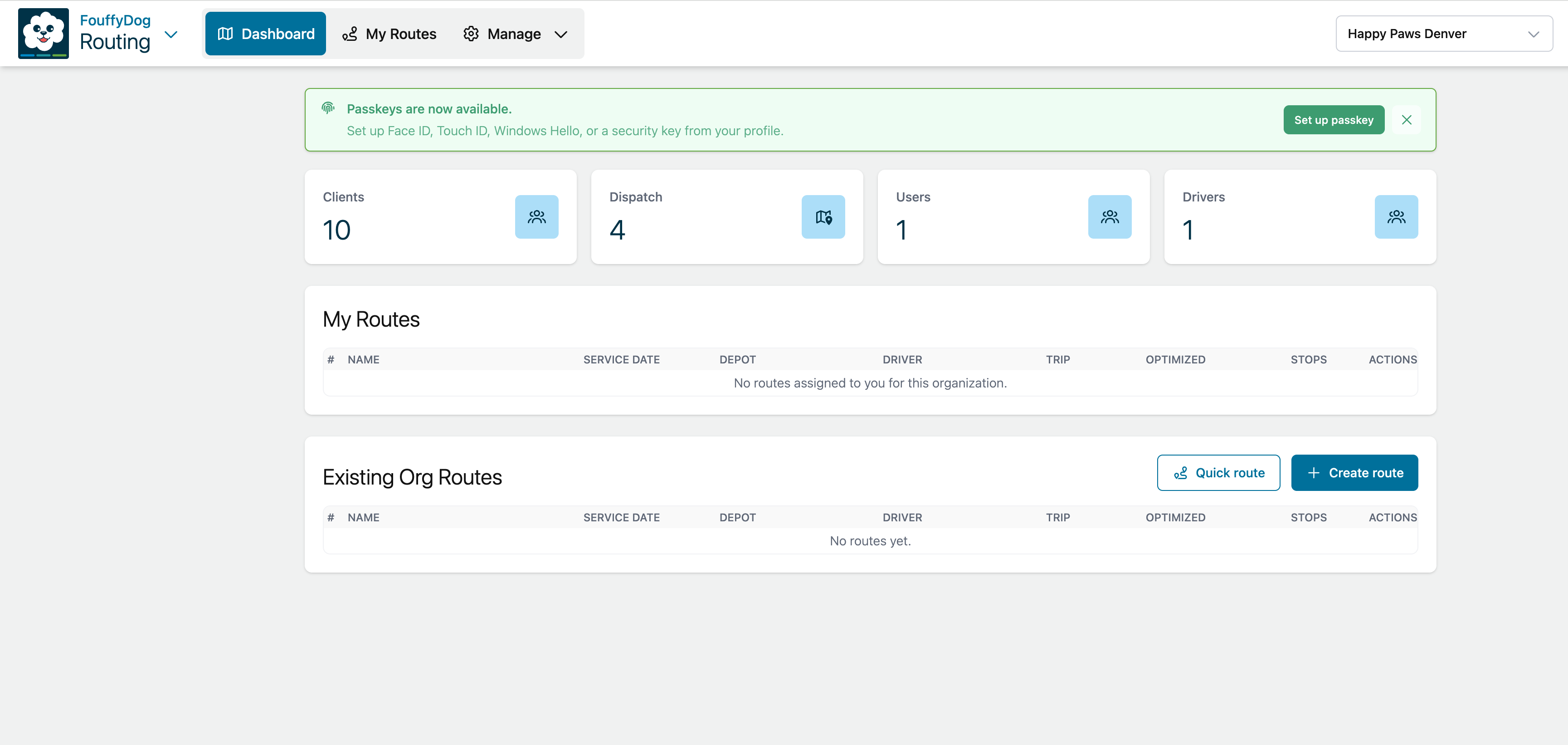
The main navigation shows the areas you can use from your current account and organization.
- Dashboard shows route summaries, account or organization activity, and quick access to routes.
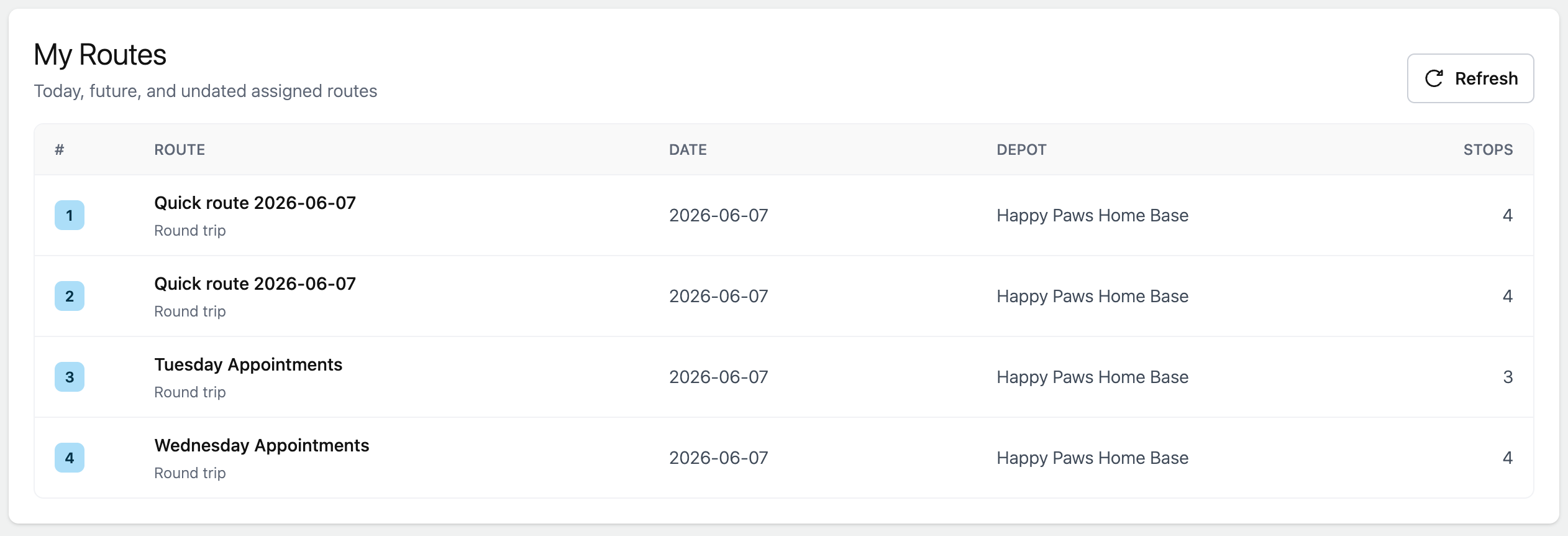
- My Routes shows routes assigned to you when you are assigned as a driver.
- Super Admin appears only for support or system administrators.
- Manage contains setup and operational tools such as Organization, Customers, POIs, Users, Drivers, Dispatch, and Imports.
On smaller screens, these options move into the menu button at the top of the page.
Profile menu
Use the profile menu when you need personal or account-related actions.
Depending on your access, the menu may include:
- Account for account details, account users, plan usage, and subscription choices.
- Profile for your name, email, password, passkeys, and MFA.
- Support to open the Fouffy Dog Routing Support site.
- Sign out to leave the app.
On phones and tablets, the signed-in email appears inside the menu so you can confirm which user is signed in.
Account and organization selectors
If you have access to more than one account or organization, use the selectors in the navigation area to change context.
- The selected account controls account users, subscription details, and account-wide limits.
- The selected organization controls customers, POIs, routes, drivers, dispatch locations, imports, and organization defaults.
If you switch organizations, the route and customer lists update to match the selected organization.
Manage menu
Use Manage for setup and day-to-day operational data.
- Organization: selected organization settings, defaults, and route policies.
- Customers: customer records and validated addresses.
- POIs: saved places you may reuse on routes.
- Users: account users and organization access.
- Drivers: users who can be assigned to routes.
- Dispatch: saved start and end locations.
- Imports: customer and route imports.
If an option is missing, your role may not include access to that area.
Routes and Quick Route
Use saved routes when you want to keep, assign, duplicate, or navigate a route later.
Use Quick Route when you want to test a route before saving it.
From a route screen, you can:
- Search for customers.
- Search for POIs.
- Add, edit, remove, and reorder stops.
- Choose a driver.
- Choose start and end points.
- Refresh the map.
- Optimize the route.
- Navigate in Google Maps when the route has enough valid locations.
- Save the route when you want to keep the changes.
Finding customers, POIs, and stops
Search boxes are usually filtered as you type.
- Customer search uses saved customers in the selected organization.
- POI search can find saved POIs and new places.
- Address search helps validate customer and dispatch addresses before saving.
If you do not see the result you expect, check that the correct organization is selected first.
Back button and direct links
The browser Back button should return you to the previous app area when possible.
Some pages can also be opened directly, such as route details, Profile, Account, and My Routes. If you open a page that your role cannot access, the app may show a not found page or redirect you to the correct starting point.
Where to start
If you are setting up the app for the first time, start with:
- Account to confirm account details and users.
- Organization to confirm defaults.
- Dispatch to add common start and end points.
- Users or Drivers to assign drivers.
- Customers or Imports to add customer locations.
- Routes or Quick Route to build your first route.