
Smart Spreadsheet Import
Let Fouffy Dog Routing suggest spreadsheet column mappings.
Smart spreadsheet import helps when your spreadsheet columns do not exactly match Fouffy Dog Routing fields.
Upload the file, ask for mapping suggestions, then review the results before staging the import.
How it works
- Open Manage > Imports.
- Choose Customers or Routes.
- Select your spreadsheet.
- Choose Suggest Mapping.
- Review the suggested field mapping.
- Fix any field that is wrong or should be skipped.
- Stage the import.
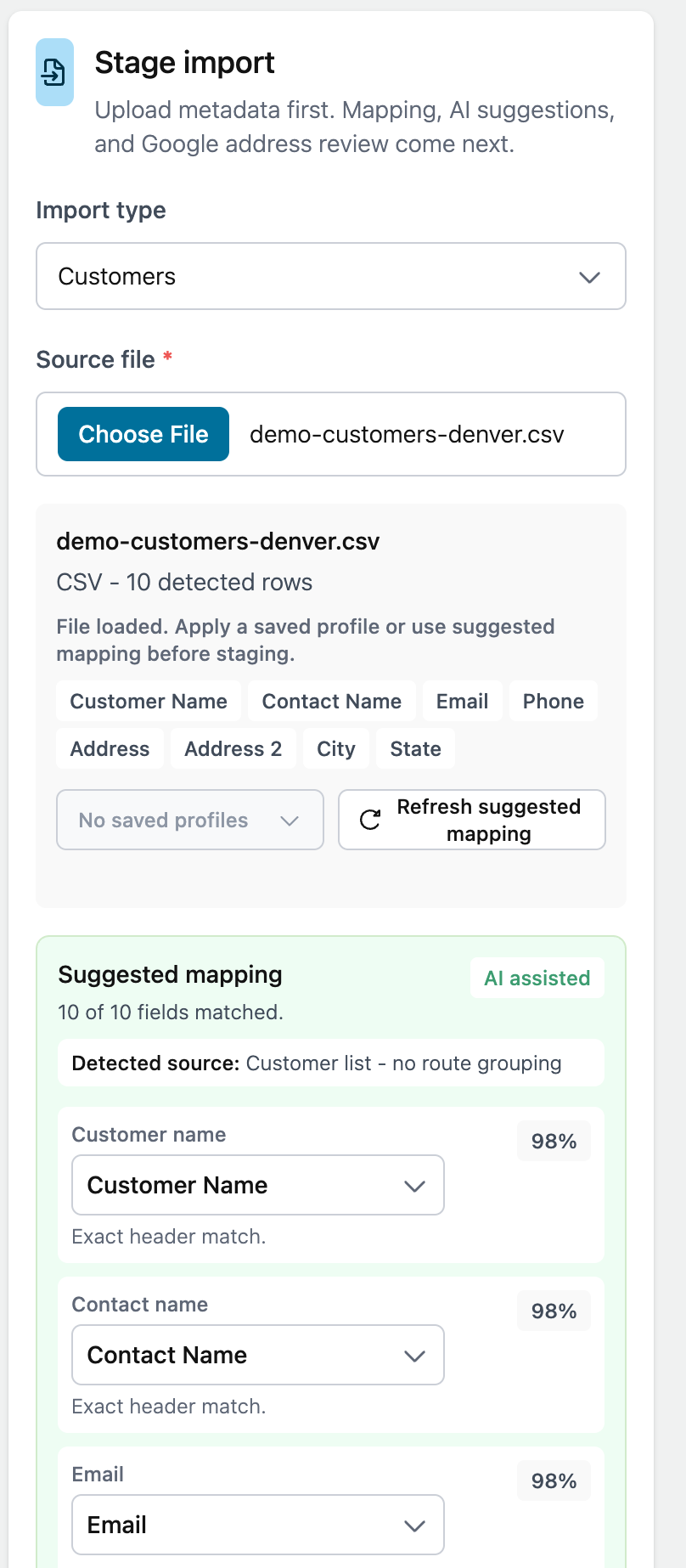
Example mappings
- Customer → Customer Name
- Service Address → Address
- Appointment Time → Appointment Time
- Comments → Notes
Always review before saving
The import assistant can save time, but you should still review the mapping and row messages before saving imported data.