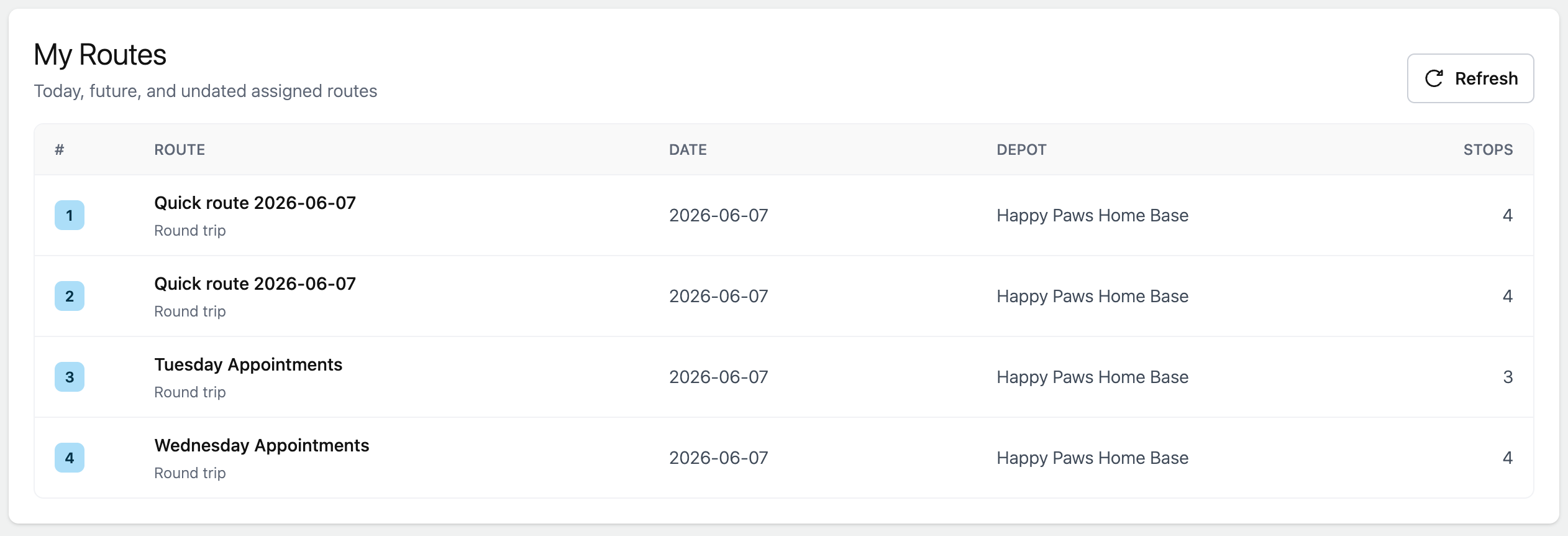
Assign a Route to a Driver
Choose who should see and navigate a route.
Drivers can see assigned routes from My Routes.
Before assigning a route
The user must be assigned as a driver.
If the user does not appear in the driver list, open Manage > Users or Manage > Drivers and confirm that the user is assigned as a driver.
Assign a route
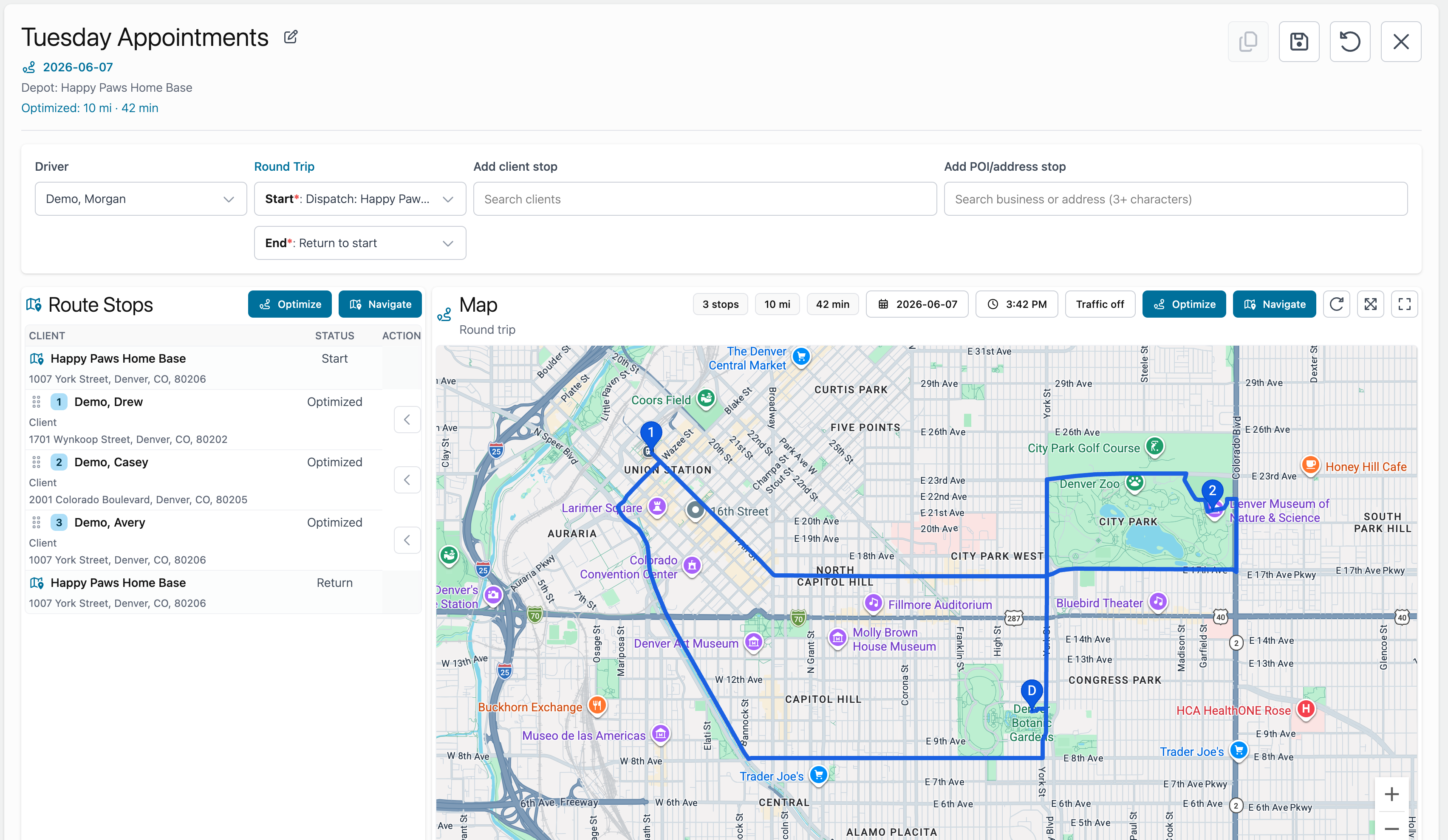
- Open the route.
- Find the driver selector.
- Choose the driver.
- Save the route.
Driver access
Drivers can open assigned routes and use navigation.
If a driver does not see a route, confirm that:
- The user is assigned as a driver.
- The route is assigned to that driver.
- The correct organization is selected.