
Import Appointments
Upload a spreadsheet of appointments and turn it into route stops.
Use appointment imports when your schedule already exists in a spreadsheet, calendar export, booking system export, or customer list with appointment details.
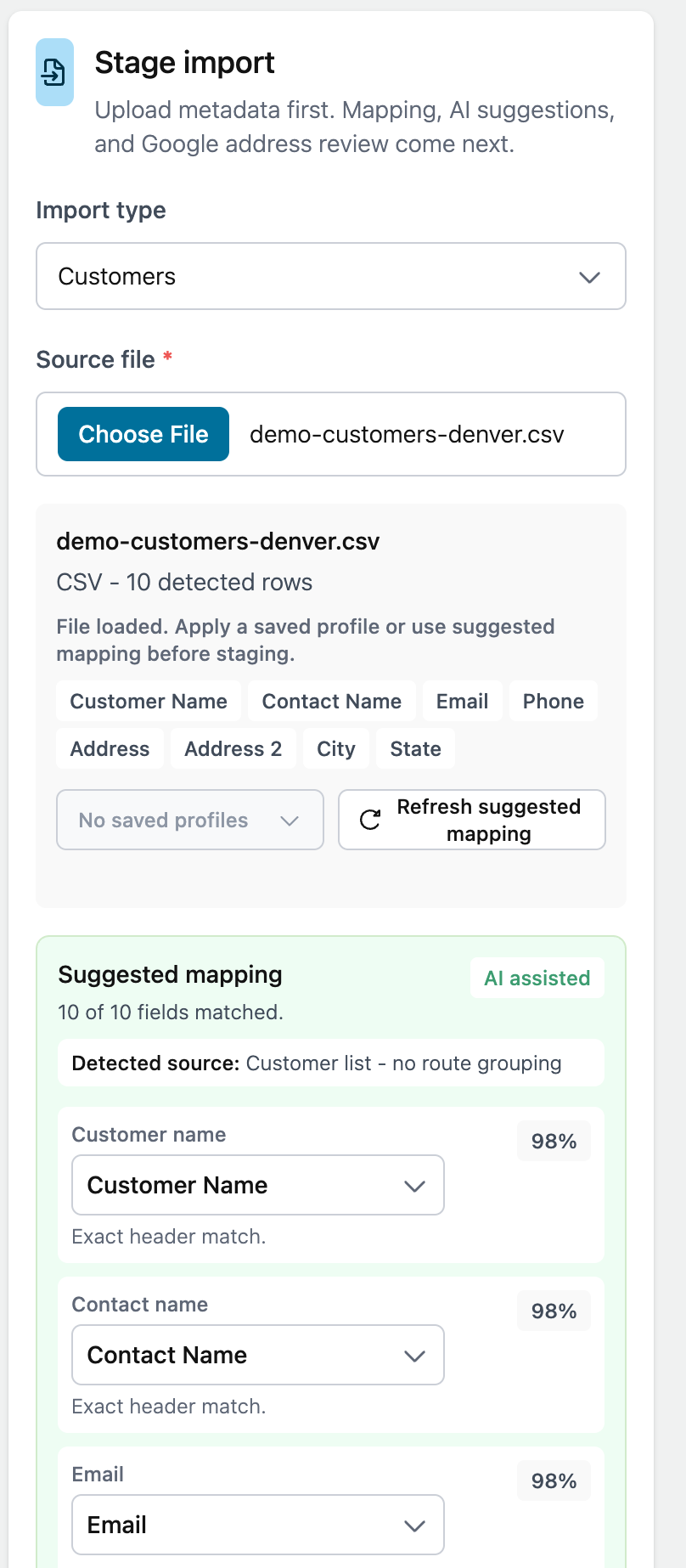
Import appointments
- Open Manage > Imports.
- Choose Routes as the import type.
- Select your CSV or Excel file.
- Choose Suggest Mapping.
- Review the detected columns.
- Confirm or fix the mapping.
- Stage the import.
- Review rows that need attention.
- Save the ready rows.
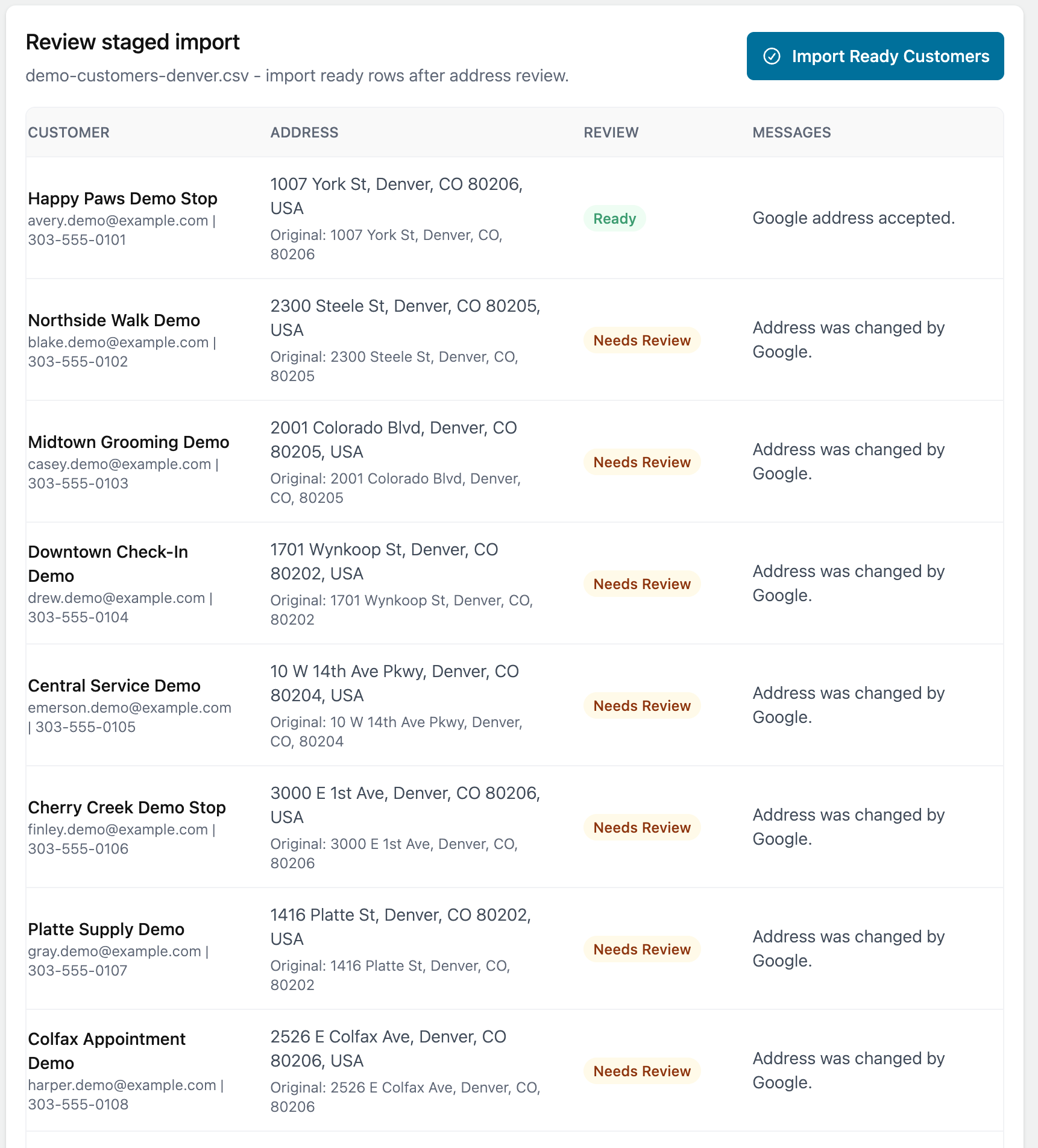
What to check before saving
Make sure the customer name and address are correct.
If the file includes appointment date, appointment time, service, or notes, review those fields before saving.
Create a route
After the import is reviewed, Fouffy Dog Routing can create route stops from the uploaded appointments.
Open the route, review the stops, optimize if needed, and save the route.